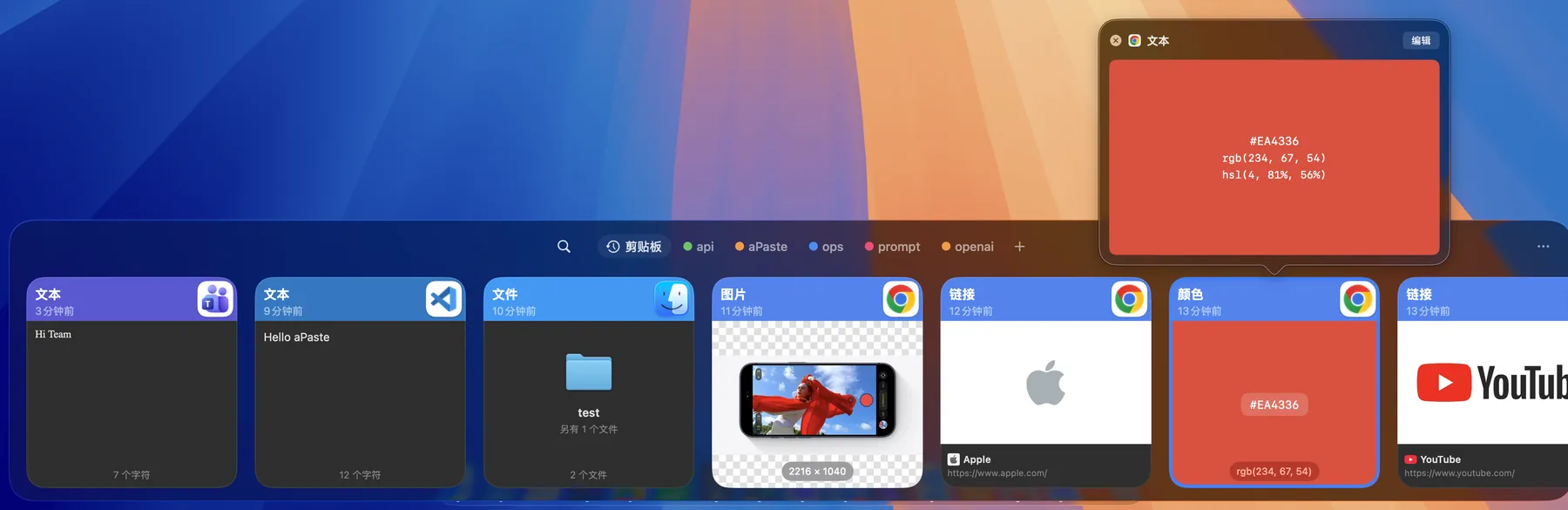
Search as you type.
Filter by content type (text, link, image, file), date or source app. With image text recognition on, words inside screenshots are searchable too. Arrow keys to select, Return to paste.
Press ⌃` to open the panel and type to find anything you copied. Keep reusable items on Pinboards, then press Return to paste straight back into the app you were using.
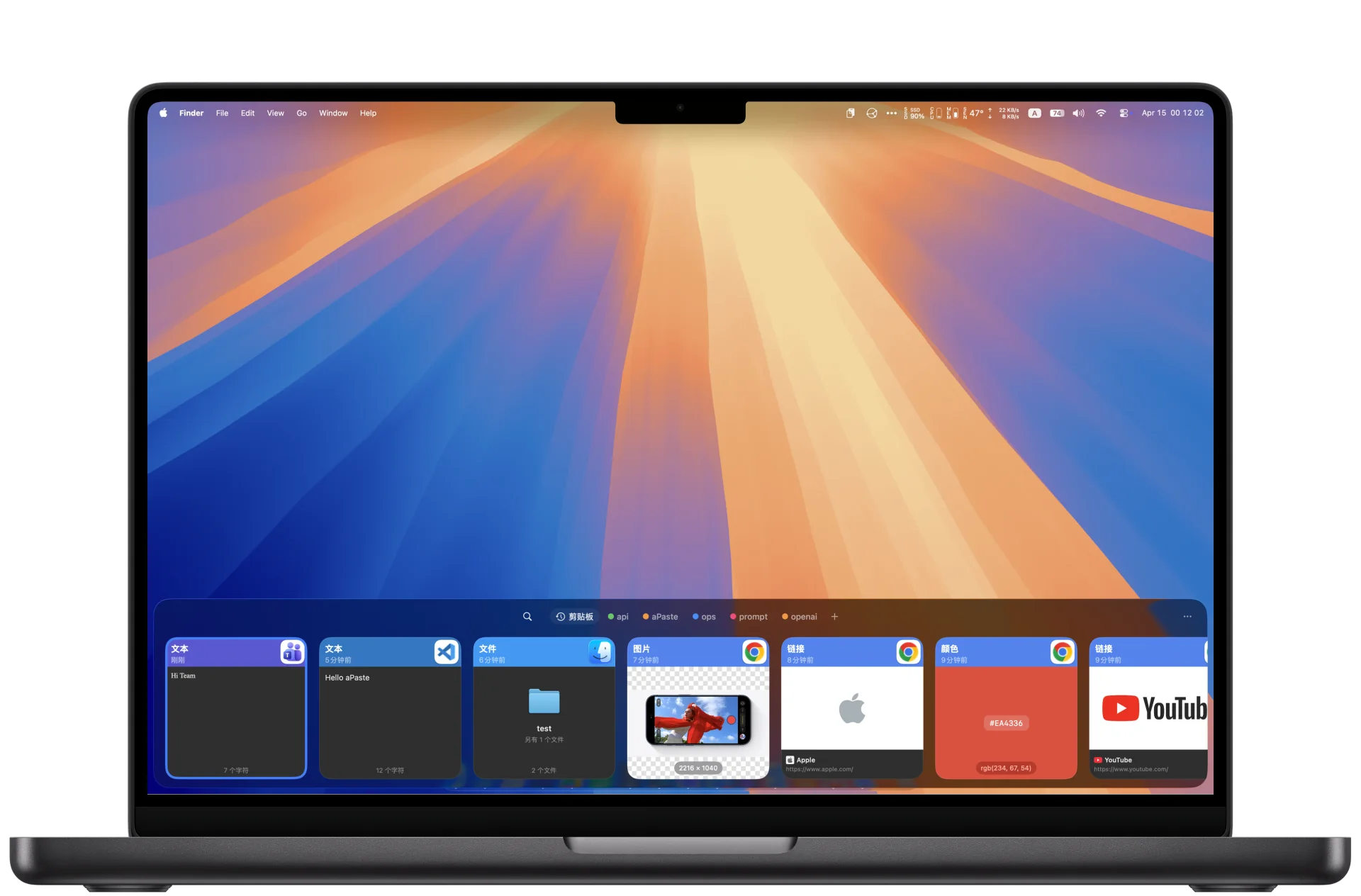
History becomes searchable cards and reusable items live on Pinboards. aPaste Stack covers the times you need to paste several things in a row, and quick actions clean the content up first.
Filter by content type (text, link, image, file), date or source app. With image text recognition on, words inside screenshots are searchable too. Arrow keys to select, Return to paste.
Snippets, addresses and reply templates live on colour-coded Pinboards, switched with ⌘← / ⌘→. Clearing history never touches them.
Press ⌘⇧C to open the Stack, copy several items in a row, then paste them out one by one in order — ideal for filling forms and assembling tables.
Text keeps its rich formatting and detected colour values, links can fetch page titles and images (that network lookup is switchable), and images and files each get their own card.
Ignore new captures automatically, or pin them to a specific Pinboard, based on content type, source app, text (regex supported), URL host, file extension or size range. Rules can be dry-run against your existing history first.
Nine quick actions live in the card's right-click menu; the result goes straight to your clipboard.
The bottom panel hugs the edge of the screen for horizontal scanning; Command Center is a resizable window with a list on the left and details on the right, better for long content.
Content marked confidential by password managers, and transient clipboard data, are ignored out of the box, and you can stop capture entirely for any app. Hiding contents from screenshots and recordings is a separate switch that is off by default — turn it on when you need it.
See all featuresScan quickly in the panel, then open a full preview when you need more context.

Supported content lands in your history automatically; anything excluded by privacy settings or capture rules is never recorded.
Hit the shortcut, type a keyword, or switch Pinboards with ⌘← / ⌘→.
Select an item and press Return to paste it back into the app you just left (needs Accessibility permission).
aPaste has no account and no cloud service of its own. Data leaves your Mac only after you pick a shared folder yourself — put it inside iCloud Drive, Dropbox or a Syncthing directory and several Macs share one history.
The app is not notarized, and that is the misleading message Gatekeeper shows. Run xattr -dr com.apple.quarantine /Applications/aPaste.app in Terminal and it opens normally — the download itself is intact.
Only for pasting back into the frontmost app, which aPaste does by simulating ⌘V. Without the permission everything else — capture, search, Pinboards, copying to the clipboard — works as usual.
History and Pinboards live in a local database on your Mac. Apart from link previews (switchable), aPaste makes no network requests, and it only writes sync data into a shared folder you selected yourself.
Point both Macs at the same shared folder, for example inside iCloud Drive, Dropbox or a Syncthing directory. aPaste just writes monthly NDJSON shards plus asset files; the syncing itself is done by the tool you chose. Enable end-to-end encryption with a passphrase if you want more protection.
Four: text, links, images and files. Text items additionally get rich-text previews and detected colour values, and images can be searched by recognized text once OCR is enabled.
Yes. Pause capture from the menu bar, add apps to the ignore list in Settings, or let capture rules ignore items automatically by content type, text, URL, extension and more.
Settings can erase the history in one click, and can auto-clean by age or item count. After deleting the app, remove the aPaste data files from your sync folder as well.
Requires macOS 15 or later. The release page has one DMG for Apple Silicon and one for Intel — pick the one matching your chip, or let Homebrew decide.
If macOS calls aPaste "damaged" on first launch, one command clears it
Pasting back into your previous app needs a one-time Accessibility permission
See the install stepsbrew tap alliottech/tap
brew install --cask alliottech/tap/apaste
xattr -dr com.apple.quarantine /Applications/aPaste.appApple Silicon and Intel ship as separate builds — not a universal binary.