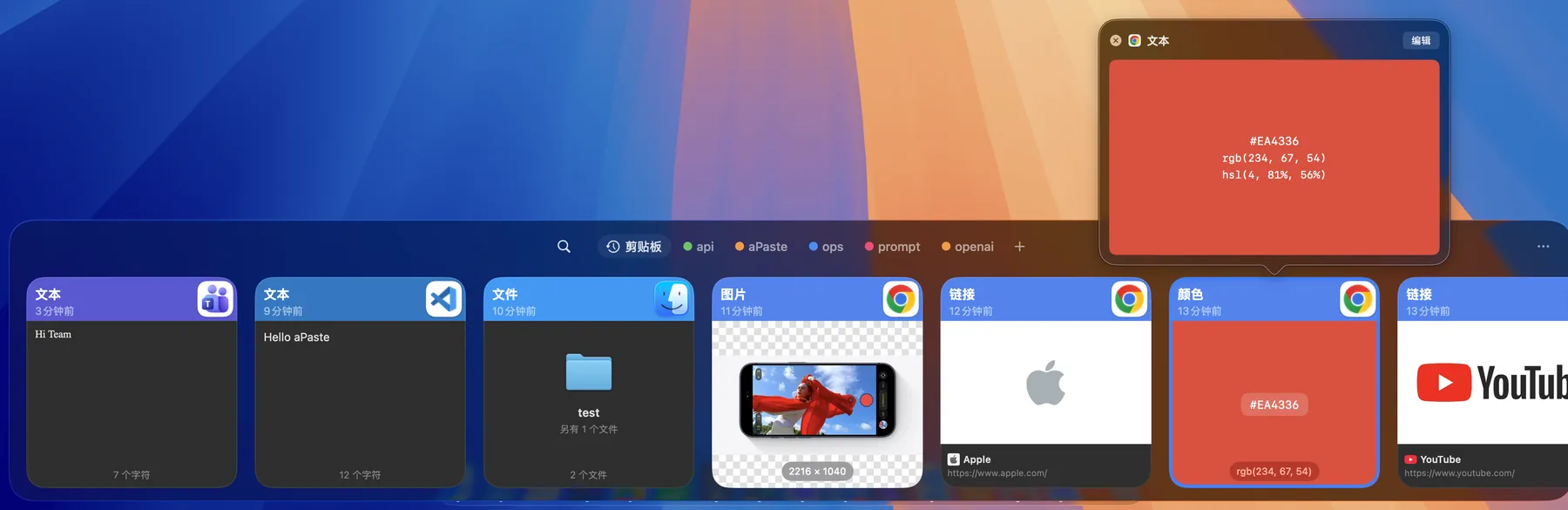
From automatic capture to precise search, from reusable snippets to batch pasting. Here is everything aPaste does today.
Clipboard history you can actually search.
Text, links, images, and files copied in any app are captured automatically, and identical content stays a single row. Search by keyword, or filter with type: / date: / app: tokens that turn into pills in the search field. Turn on image text recognition and text inside images becomes searchable too, stored only on this Mac.
Pinboards: reusable content that never expires.
Create colored Pinboards for snippets, addresses, and reply templates. Pin from the context menu, move items between boards, or drag a card onto a board tab. Retention cleanup by age or count never touches pinned items. In-panel shortcuts cycle to the previous or next board.
APIAuthorizationBearer ••••••••
SupportThanks, we got itReply template
Brand#6C5CE7Primary purple
aPaste Stack: collect a batch, paste in order.
Open Stack with a global shortcut, then keep copying. While it collects, even repeated copies of identical content become separate rows, so you can paste them out one by one in order. No window juggling while filling forms or moving data.
1Jane Doe
213800000000
3zhangsan@example.com
⌘⇧C
A purpose-built preview for every type.
Rich text keeps its styling. Color values fill the card with a swatch and hex label, with text contrast picked by luminance. Links fetch title, icon, and cover image. Images and files get their own cards. Link fetching is the only network feature and can be switched off, falling back to a default icon immediately.
Capture rules that file new content for you.
Match on content type, source app, text or regex, URL host, file extension, and size range. When every condition matches, the item is ignored or pinned to a board automatically. Create a rule from the current clipboard or an existing card, keep common conditions visible with advanced ones tucked away, and test a rule against existing history before saving.
IFSource appXcode
ANDText containsTODO
↓
Pin toDev
Clean the content up before you paste it.
Nine quick actions live in the card's context menu: pretty-print or minify JSON, strip common URL tracking parameters, copy as a Markdown link, copy text recognized in an image, and transform case, join to one line, or trim whitespace. Only applicable actions appear, and the result goes straight to the clipboard without adding a history row.
Quick actions9
{ }Pretty-print JSON
{ }Minify JSON
↗Remove tracking parameters
MDCopy as Markdown link
AaCopy recognized text
⇥Case / one line / trim
Two panel layouts, your pick.
The bottom panel hugs the screen edge for quick horizontal scanning. Command Center is a resizable window with a date-grouped list on the left and details on the right, remembering both its frame and split width. Both layouts share the same cards, badges, and previews.
Bottom panel
Command Center
Private by default, synced only if you say so.
Content marked confidential by password managers and transient clipboard data are skipped out of the box. Ignore specific apps entirely, or pause capture from the menu bar. History lives in a local database, and sync data is only written after you pick a shared folder — iCloud Drive, Dropbox, or Syncthing — with optional end-to-end encryption.
Hide from screen captureOptional switch, off by default
Everything stays on this Mac
Panel and keyboard
Open, find, paste, without leaving the keyboard.
Only two shortcuts are registered globally: open the panel and start aPaste Stack. Everything else is a local in-panel shortcut you can remap individually or reset all at once.
Arrow keys to select, Return to paste, ⌘C to copy and close
⌘A selects visible cards, SHIFT with arrows or click extends a range, then paste or delete the whole selection at once
⌘Z undoes the last delete, ⌘F enters search, ⌘G jumps a result back to its place in history or its Pinboard
Choose a paste mode: send it straight back to the previous app, or only write to the system clipboard and paste yourself
Hold a modifier to strip formatting for one paste, or switch to always plain text
Text, links, and images open in a dedicated editor: rich text styling, a color picker, and image rotation
Actions confirm with a HUD and optional sound. The panel follows the system appearance, or you can pin it to light or dark
The menu bar icon can be hidden once a toggle shortcut is set, and a new release shows up as an entry in that menu
MacBook
Mac
Shared folderOptional encryption
iCloud DriveDropboxSyncthing
Get aPaste
Less repetitive work. More focus.
Requires macOS 15 or later. Free to use, no account. The releases page has one DMG for Apple Silicon and one for Intel.